VibeCap
Screenshot Tool for Vibe Coding
A lightweight screenshot tool for macOS that helps you turn screenshots into AI-ready conversations — in one click.
macOS 13.0+ · Apple Silicon · Free

Why macOS Screenshots Slow Down Vibe Coding
macOS screenshots are powerful. But once you start vibe coding, they become friction.
The screenshot disappears before you're ready
You take a screenshot. If you don't grab it immediately and drop it into the input box in time, it's gone. Now you're digging through folders. That moment of flow is already broken.
Moving screenshots across windows is fragile
Even if you catch the screenshot, you still have to drag it across screens, find the right window, aim for the right input box. Miss once, and you're retrying.
Multiple screenshots mean repeated pain
Need to send two or three screenshots together? You repeat the same steps again and again: capture → grab → drag → drop. It's slow. And it pulls you out of your thinking every time.
Annotation exists, but doesn't help much
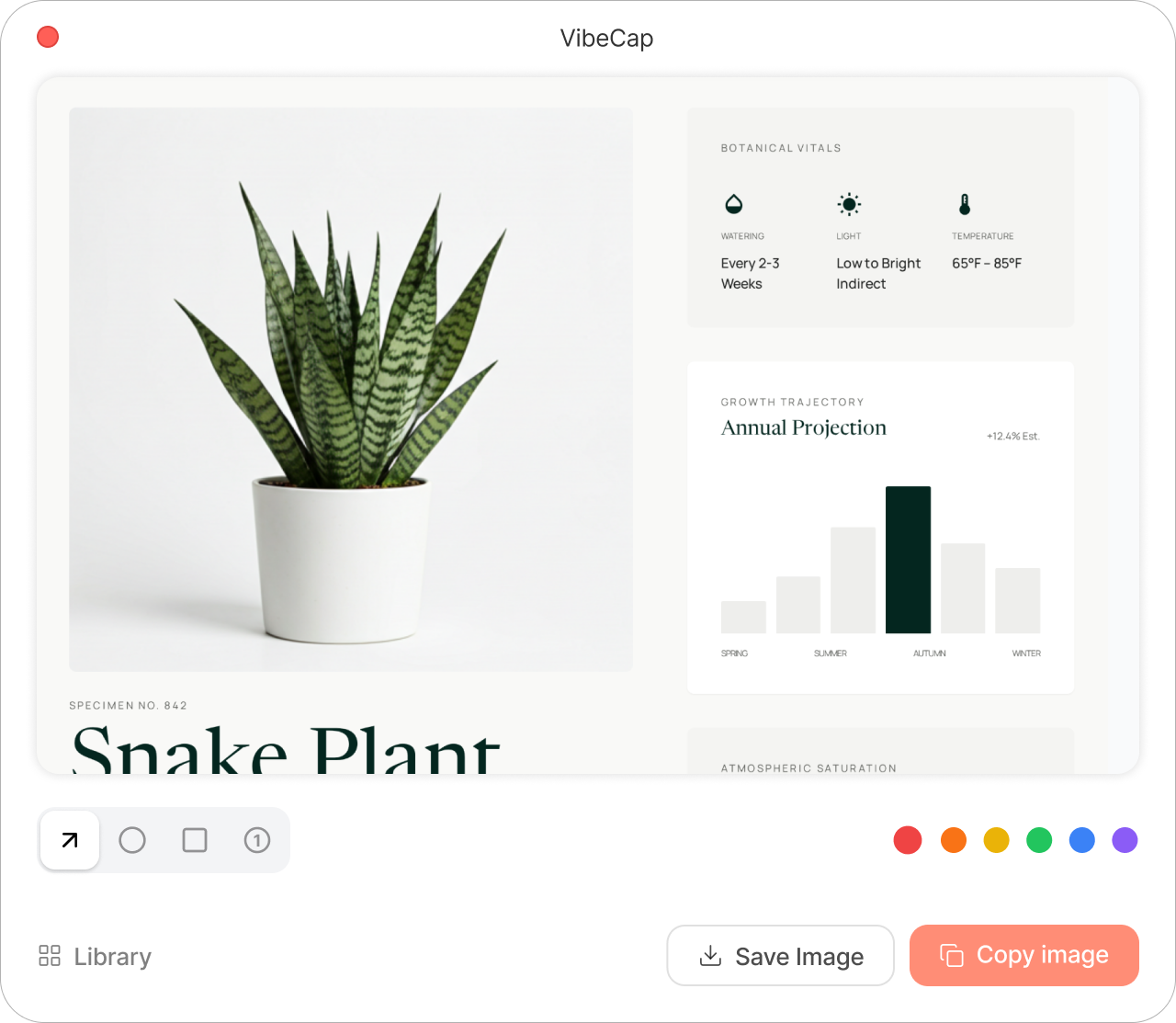
macOS annotation tools technically work. But they're not designed for explaining problems to an editor: switching tools, clicking tiny buttons, marking without context.
How VibeCap Works
VibeCap is not a replacement for your editor. It fixes the moment before you talk to it.
// Write your prompt...
VibeCap Features
Fast capture
- Global shortcut
- Select any screen or monitor
- Capture exactly what you see
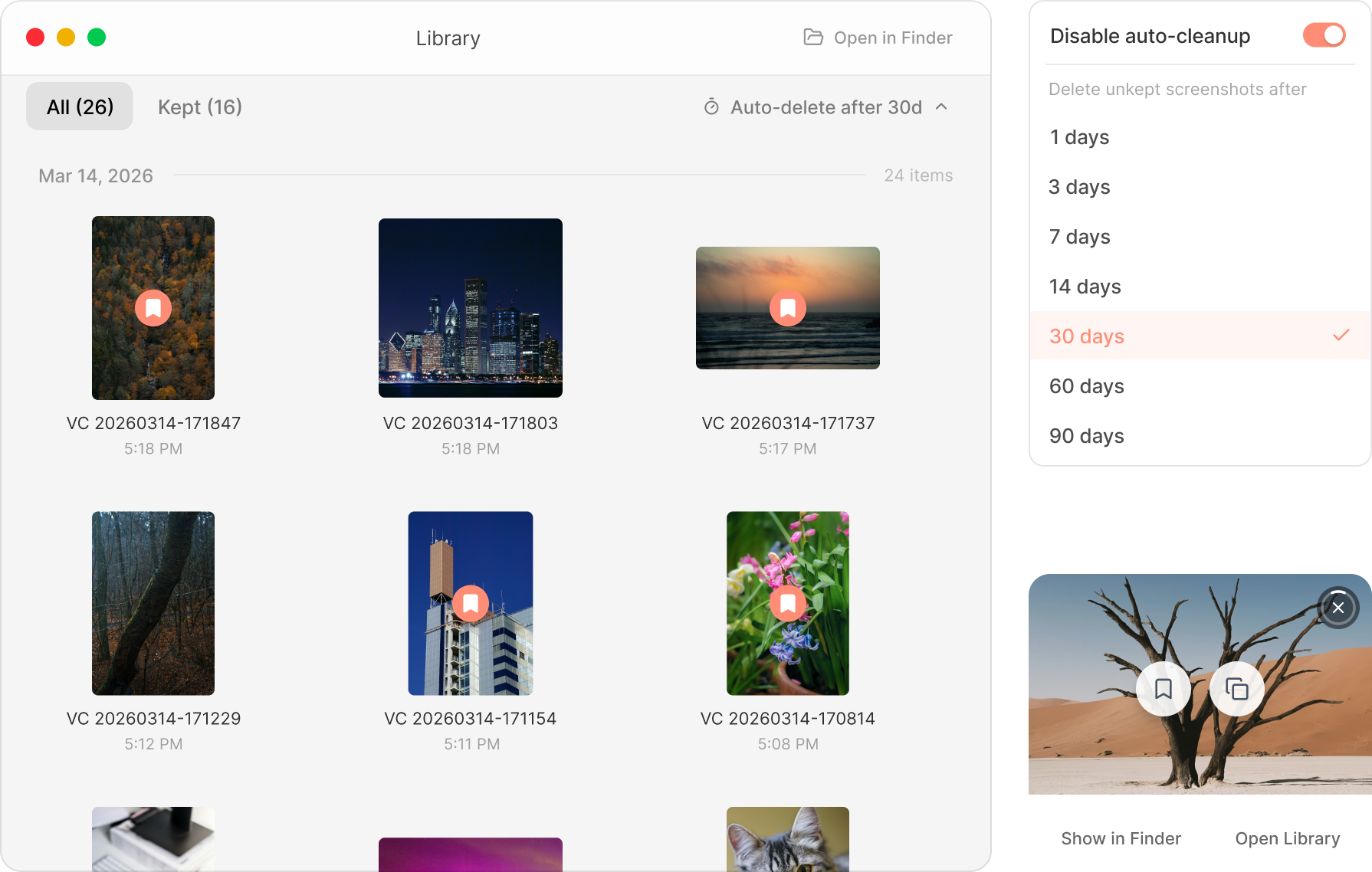
Multiple screenshots in one flow
- Capture more than one image
- Keep them together
- Send them together
Simple annotation
- Mark areas that matter
- Point without overworking
- No heavy tools, no distractions
Prompt + image, sent together
- Write your prompt or instruction
- Image(s) and text go into the editor at the same time
- No manual pasting, no re-ordering
Editor-friendly by design
- Works naturally with modern coding tools
- No account required
- No cloud dependency
VibeCap Pricing
Pick the plan that fits how you work.
No accounts. Cancel anytime for subscriptions.
No feature differences. Just different ways to pay.
VibeCap — Frequently Asked Questions
VibeCap is a macOS menu-bar screenshot tool designed for vibe coding. It allows developers to capture screen areas, add annotations, write prompts, and send screenshots directly to AI-powered code editors such as Cursor, Windsurf, and GitHub Copilot — all in a single copy-paste action.
VibeCap runs in the macOS menu bar. Users trigger a capture via a global keyboard shortcut (default: ⌘⇧C), select a screen area, optionally annotate the screenshot and write a prompt, then copy everything. VibeCap automatically pastes both the image and the text into the target editor when the user presses ⌘V.
VibeCap is a native macOS application. It requires macOS 13.0 (Ventura) or later and supports both Apple Silicon and Intel Macs. There is currently no Windows or Linux version.
VibeCap offers a free tier that includes area capture, screenshot saving, and arrow annotations. A Pro subscription unlocks additional annotation tools (rectangles, circles, numbered markers) and color customization. Plans start at $1.99/month, $17.99/year, or a one-time $24.99 lifetime purchase.
VibeCap does not collect, store, transmit, or share any personal data. All screenshots and prompts remain on the user's device. VibeCap does not include analytics, tracking, advertising SDKs, or cloud services. It operates entirely offline.
macOS built-in screenshots (⌘⇧3/4) capture images that disappear from the preview quickly, require manual dragging across windows, and lack prompt-attachment support. VibeCap keeps screenshots in context, supports multiple captures per session, provides annotation tools designed for explaining code problems, and delivers screenshots with prompts to the editor in one action.
VibeCap works with any application that accepts pasted images. It is optimized for AI-powered code editors including Cursor, Windsurf, GitHub Copilot, and other tools that accept screenshot-based prompts. It also works with chat applications like Slack, Discord, and web-based AI interfaces.
VibeCap does not require an internet connection for its core functionality. All captures, annotations, and clipboard operations happen locally on the device. An internet connection is only needed for initial App Store download and in-app purchase verification.
VibeCap provides arrow, rectangle, circle, and numbered-marker annotation tools. The free tier includes arrows in red. Pro users can access all annotation shapes and choose from six colors: red, blue, green, yellow, orange, and purple.
Yes. VibeCap supports capturing multiple screenshots in a single session. Users can take several captures, annotate each one individually, then write a single prompt and send all images together to their editor in one paste action.
VibeCap, CopyCut, and SnapCode all serve the AI coding screenshot workflow but differ in approach. CopyCut focuses on copying file paths for reference in prompts. SnapCode is built specifically for Claude Code integration. VibeCap combines multi-screenshot capture, visual annotations, prompt text attachment, and auto-paste into any AI editor in a single flow — no file path management required.
CleanShot X is a comprehensive screenshot and screen recording tool with 50+ features including cloud storage, scrolling capture, and GIF recording. However, it does not support prompt text attachment or auto-paste to AI code editors. VibeCap is purpose-built for the capture-annotate-prompt-paste workflow that AI-assisted coding demands, with no unnecessary features adding complexity.
Yes. While VibeCap is optimized for AI code editors like Cursor, Windsurf, and GitHub Copilot, it works with any application that accepts pasted images. Users regularly use VibeCap to send annotated screenshots to ChatGPT, Claude, Slack, Discord, Notion, and other tools where visual context improves communication.
Download VibeCap — Free on the Mac App Store
It doesn't replace your editor or your AI tools. It simply removes friction from the capture → prompt → continue loop.
From everyday AI tasks to vibe coding workflows, VibeCap helps your screenshots speak clearly to AI.
Download for macOS